The Main Display tab is your operating station. It holds two transceiver controllers — one for the Main band and one for the Sub band — plus a shared control section for settings that apply to the radio as a whole.
Each transceiver controller has its own band, operating mode, data mode, filter, tone control and tone frequency, set independently for that transceiver. Click on the transceiver name to make it the active transceiver.
The shared section holds the frequency (for the active transceiver), VFO, split and RIT controls, along with receive, transmit and satellite settings for the radio.
In satellite mode the two controllers work together as uplink and downlink for full-duplex operation.
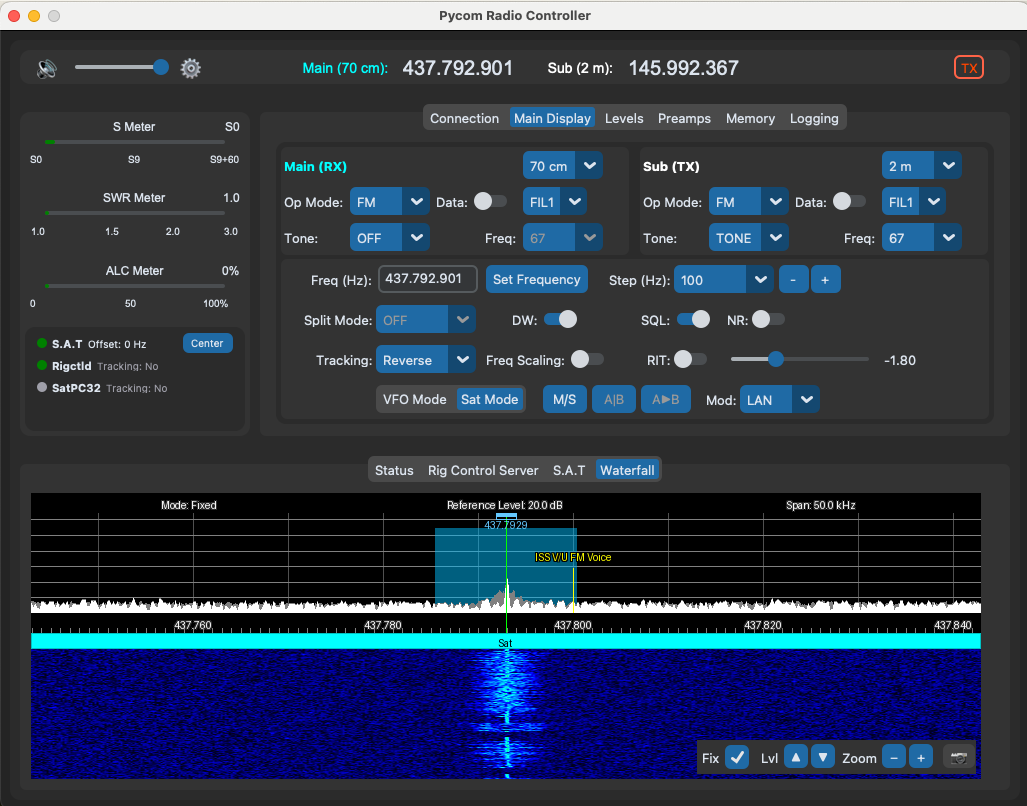
There are multiple ways you can tune the radio — tuning always applies to the active transceiver. You can also click the waterfall, scroll with your mouse, or turn the dial on a connected RC-28 controller to tune. See the Interface Overview for full details on how the radio can be tuned.
Frequency and Tuning #
Click a transceiver controller to make it active — the frequency controls below always tune the active transceiver
| Control | What it does |
|---|---|
| Frequency (Hz) | Enter a frequency (e.g., 144,000,000) — applied to the active transceiver |
| Set Frequency | Apply the entered frequency |
| Step (Hz) | Choose the tuning step (e.g., 100 Hz) |
| +/− buttons | Adjust the active transceiver's frequency up or down by the selected step |
VFO, Split and RIT #
| Control | What it does |
|---|---|
| VFO mode / Satellite mode | Switch between normal VFO operation and satellite mode (if your radio supports satellite mode) |
| VFO A|B | Switch between VFO A and VFO B |
| VFO A▶B | Copy the frequency of VFO A to VFO B |
| M/S | Exchange bands — swaps frequency, band, operating mode and filters between the two controllers |
| Split Mode | Set split operation (OFF, ON, DUP −, DUP +) |
| Dual Watch | Listen to both the Main and Sub bands at the same time |
| RIT | Enable and adjust Receiver Incremental Tuning to fine-tune your receive frequency without moving your transmit frequency |
The width of the RIT slider is controlled by the rit_max config setting
Receive Controls #
| Control | What it does |
|---|---|
| SQL | Squelch — silences the speaker until a signal is received |
| Noise Reduction | Reduces background noise on the received signal |
| AI Noise Reduction | AI-powered noise reduction for tougher noise. See AI NR |
| Attenuation | Reduces receiver front-end gain to cope with strong signals |
Transmit Controls #
| Control | What it does |
|---|---|
| VOX | Voice-operated transmit — keys the radio when you speak |
| Modulation Input | Choose the modulation input (MIC, USB etc) |
| Tuner | Antenna tuner control (radios that support one only) |
In order to use audio via the USB connection, the modulation should be set to USB or MIC_USB
Satellite Mode Only #
When satellite mode is switched on, two extra controls appear for full-duplex operation:
- Tracking: Select Normal, Reverse or no tracking. Reverse tracking applies doppler tracking to the other transceiver in the opposite direction and is the default for satellite tracking.
- Freq Scaling: When enabled and while tracking is on, Pycom scales doppler corrections between bands using these ratios:
| Band | Ratio |
|---|---|
| 2 m | 1 |
| 70 cm | 2.86 |
| 23 cm | 8.67 |
For automated doppler correction and satellite passes, see Doppler Control, CSN S.A.T Tracking or SatPC32 CAT Control.
Learn More — and Take It Further #
Once you are comfortable tuning, these features build on the Main Display:
See also: the Levels tab for radio-side gain and audio sliders, Preamps for receiver front-end settings, and Memory to save and recall your favourite frequencies.