Web Server — Browser Control & Remote Operation
You can enable a Web Server within the desktop application that serves a browser-based control page from inside the app. Open it from any device on your network — phone, tablet, or laptop — and you get the live waterfall, the real-time meters, full radio control, and push-to-talk using that device's microphone. Operate the shack from the garden, the kitchen, or the mobile without extra software: everything runs in the browser over your LAN, and nothing is exposed to the internet.
The page works with the radio connected over network (UDP) connections only. It mirrors the desktop app: what the desktop shows, the browser shows, and most commands from either path update both almost instantly.
Enabling the Server #
Quick start: in Configuration → General, set Web Server Port (default 8090) and tick Web Server Enabled, then save. The desktop status bar confirms the server is listening. On first use the browser shows a certificate warning — accept it to continue.
The server is off by default. On first use the app generates a self-signed HTTPS certificate covering every local IP address of the machine — accept the browser's certificate warning to continue. HTTPS is required for microphone access from non-localhost devices, so web PTT needs it.
Advanced options (config.ini)
These options live in ~/Pycom/config/config.ini under the
[WebServer] section for advanced setups — and are not configurable in the configuration UI.
| Option | Effect | Default |
|---|---|---|
allow_control=False | Every client becomes monitor-only — no commands are accepted | True |
allow_ptt=False | Disables transmitting entirely | True |
save_tx_audio=True | Records each web transmission as a WAV file in ~/Pycom/logs/ — the newest five are kept | False |
What You Get #
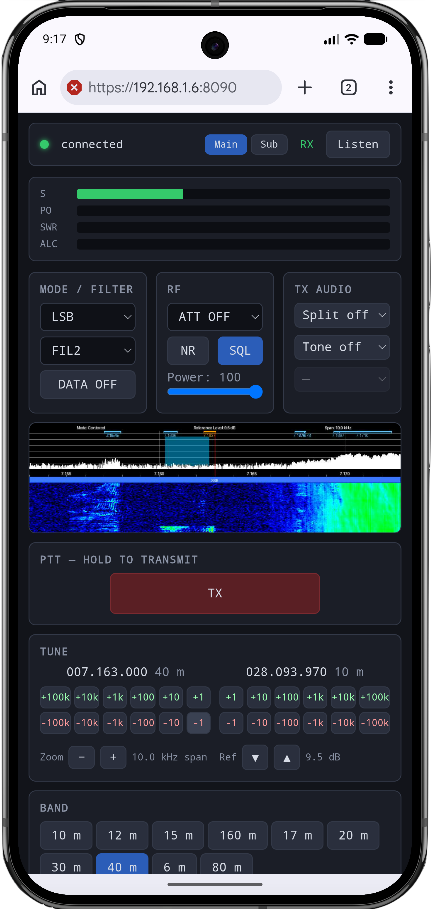
- Status bar — connection state, the Main/Sub selector which switches the radio's tuner and the audio stream together, an RX/TX indicator, and the Listen button.
- Live meters — S, PO, SWR, and ALC bars
- A subset of the most used radio controls — frequency for both transceivers, band selection, operating mode, filter, data mode, ATT, squelch, NR, and RF power.
- Split and tone — these follow whichever transceiver is selected. To edit the repeater's TX tone in split mode, select Sub first.
- Waterfall — the exact desktop composite (spectrum, waterfall, band plan, markers) streamed as video. Click anywhere on it to tune.
- Tune card — band buttons and scope zoom and reference-level controls with the same step semantics as the desktop waterfall overlay.
Listening and Transmitting #
Press Listen to stream 16 kHz radio audio to the browser; the Main/Sub buttons switch which band you hear.
Hold the large TX button to transmit using the browser device's microphone — the desktop microphone is muted automatically while you hold it and restored on release, so the browser mic is the operating mic. Your received audio mutes instantly on key-up and returns live when you release. If the browser closes mid-transmission, a watchdog releases the radio after five seconds.
The Mic Settings card lets you pick the browser input device and set gain, with a live level meter so the wrong-device case is immediately visible.
Good to Know #
- If the desktop application is restarted, you will need to refresh your browser to get a new access token allowing control via the mobile device.
- If you have multiple radios and connect to a different radio via the desktop application you'll need to refresh the browser so the new radio is loaded on the screen.
- After operating the radio from the browser and then moving back to the desktop application, it is recommended to refresh settings from the configuration tab to ensure the desktop application has the latest radio state. Most controls are synchronised, however the frequency readouts maybe out of date.
- Not all controls are available via the browser interface, set up your radio in the desktop application and use the browser as a nice way to operate your radio when you move away from your desk
Tips: the browser's certificate warning is expected — it
appears because the server uses a self-signed certificate. The certificate files are stored in ~/Pycom/web/ and can be replaced with your own certificates or by following the instructions below if you want to remove the browser warning.
One-time setup: trust the certificate on iOS & Android (removes the browser warning)
The server's certificate is generated by your own machine, so phones treat it as unknown until you install it once. After that the browser warning is gone and the certificate is valid for ten years.
iOS (iPhone / iPad) — Safari
- With the radio page open in Safari, visit
https://<your-server-address>:8090/webserver.crtand confirm the download. - Open Settings → Profile Downloaded (or General → VPN & Device Management) and tap Install for the Pycom Radio Controller profile.
- Enable full trust: Settings → General → About → Certificate Trust Settings and turn on the Pycom Radio Controller toggle. This second step is easy to miss — without it the warning stays.
- Reload the radio page — no warning, and the mic permission now persists.
Android — Chrome
- Visit
https://<your-server-address>:8090/webserver.crtin Chrome and confirm the download ofwebserver.crt. - Open Settings → Security & privacy → More security settings → Encryption & credentials → Install a certificate → CA certificate, acknowledge the warning, and pick the downloaded file. (Menu names vary slightly between manufacturers.)
- Relaunch Chrome and reload the radio page — no warning, and the mic permission persists.
Note: if the certificate is regenerated (for example after deleting the files in
~/Pycom/web/), devices that installed the old one must install the new
certificate once more. Browsing via the machine's .local name
(e.g. https://your-mac.local:8090) keeps working even when its IP address changes.
Security Model #
The server is designed for the home LAN. Commands require a per-boot token embedded in the served page, the Host header must be a literal IP or localhost as a DNS-rebinding defence, the command set is allowlisted, and stream clients are capped at four for state and audio and two for video.
The page is served over HTTPS with the generated self-signed certificate. There is no static file serving, no directory listing, and nothing leaves your network.