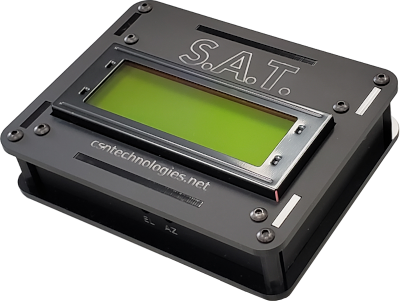
The CSN Technologies S.A.T integration allows automatic configuration of your radio and supplies doppler correction when a satellite is being tracked.
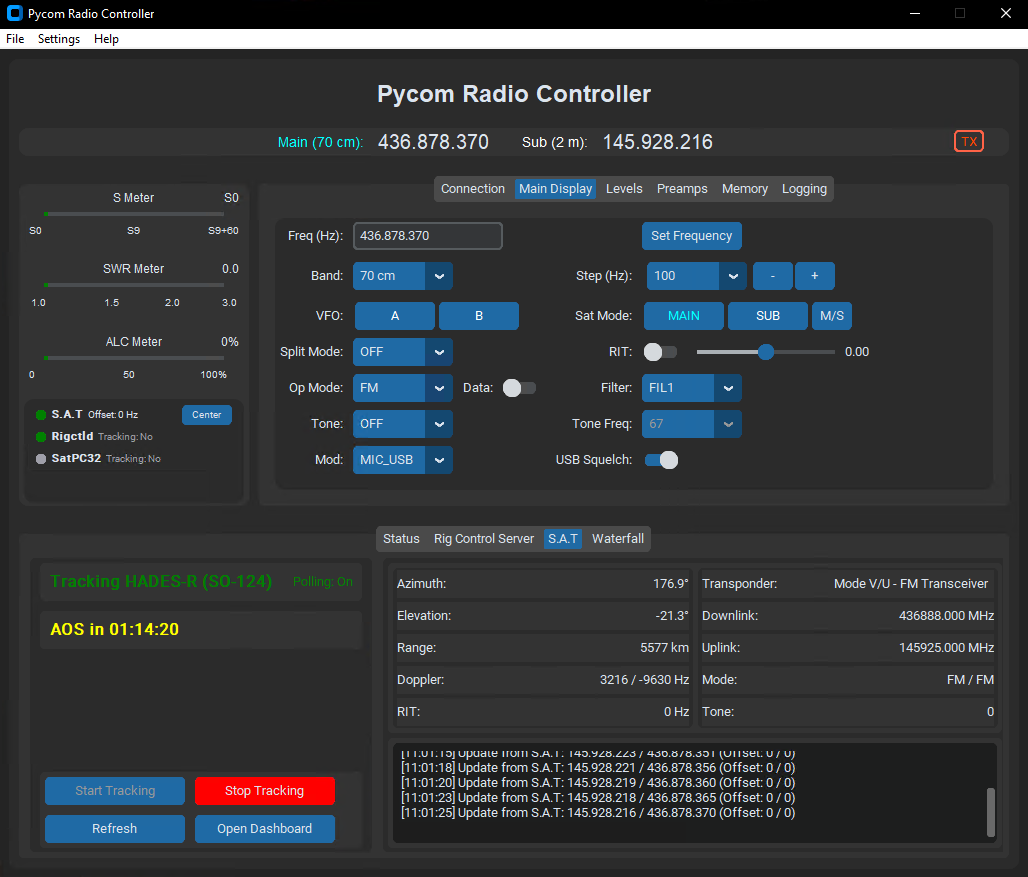
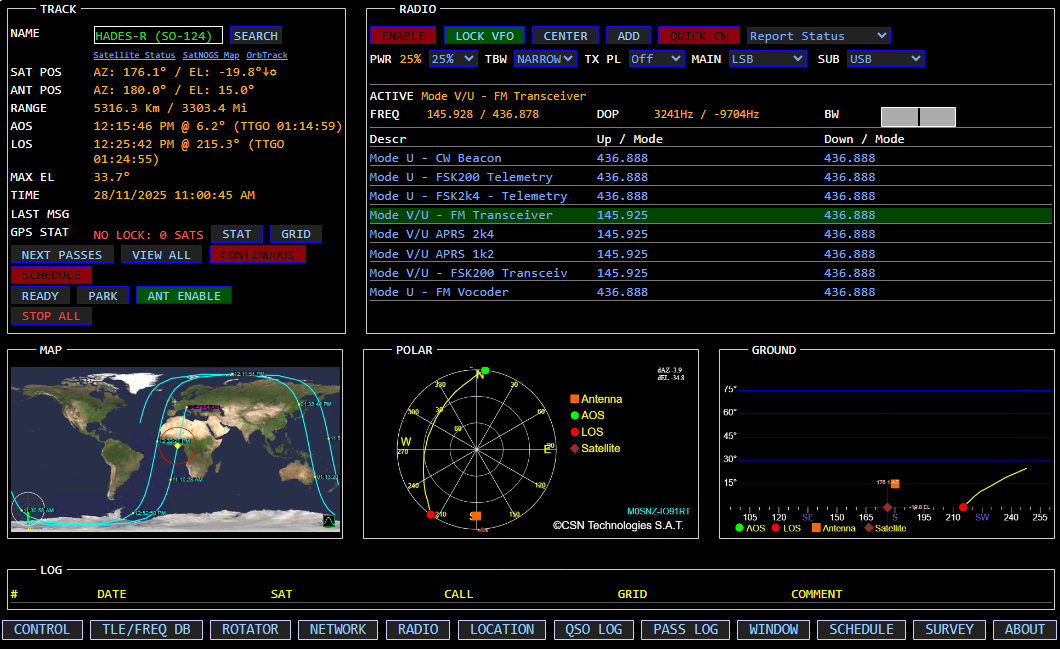
Simply set up the satellite and transponder in the S.A.T interface and then click the 'Start Tracking' button in Pycom Radio Controller. The application will set up the radio and automatically apply the doppler correction. When you are ready to track a different satellite update the S.A.T and Pycom Radio Controller will automatically detect the change and apply the correct settings.
Use the normal Pycom tuning to dial into a satellite if it is off frequency or move up and down a linear satellite bandwidth. To re-Center click on the 'Center' button in the tracking status panel which will be visible when the S.A.T is engaged.
Configuration
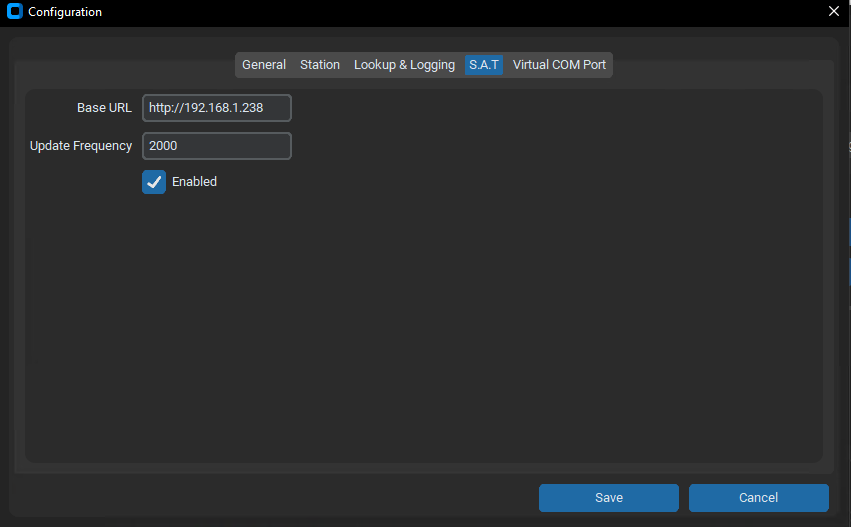
From the Settings / Configuration menu item in Pycom select the 'S.A.T' tab and update the base URL field.
The default setting will probably work on your network however because it uses mDNS there is a performance impact. It's recommended to either use an IP address in the form of http://X.X.X.X or an alternative DNS name if you have one configured.
The update frequency is in milliseconds, the default of 2000 is a good starting point. Check the enable box and save the configuration.
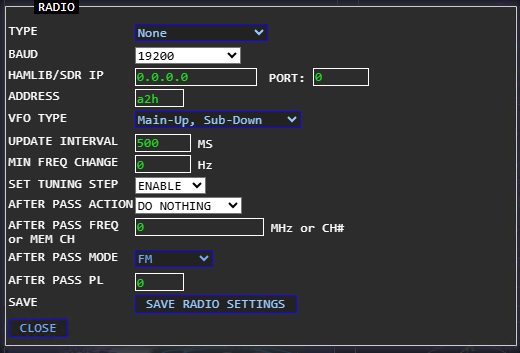
Since Pycom is controlling the radio, you should disable the radio within the S.A.T controller. Click on the radio button at the bottom of the screen in S.A.T and ensure that the type of radio selected equals none. Save the radio settings and close the window.