The Audio Scope is a view showing the audio your radio is actually receiving — displayed inside the app as a spectrum strip, a frequency label bar and a scrolling waterfall. Because it looks at audio rather than the radio’s internal RF samples, it resolves at roughly 3 Hz per column — narrow signals that are invisible against the noise of the main RF waterfall stand out clearly here.
Open it from the menu with Tools → Audio Scope, or from the round launcher button at the top-right of the waterfall. The window is independent of the waterfall tab — opening or closing it does not touch your RF scope display.
It is a listening tool: the Audio Scope shows MAIN band receive audio only, and it never transmits.
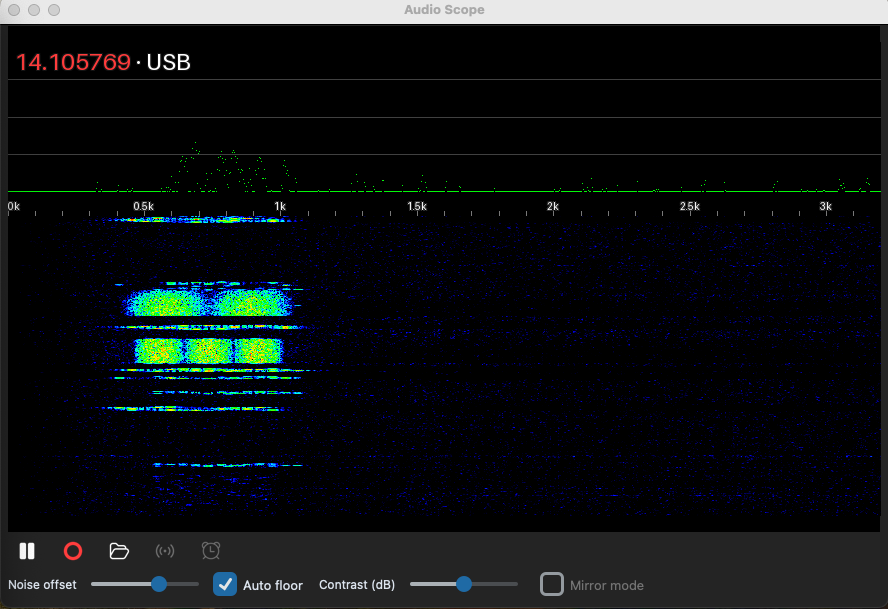
Where the Controls Are
- Record (red dot): saves RX audio to WAV in ~/Pycom/audio/live_recording/. Each recording carries a metadata sidecar with its frequency, mode and RIT. If your contact changes band or mode mid-recording, the change is journaled in place as a segment rather than splitting the file.
- Live: snaps back to the live picture from a paused or reviewing state.
- Pause / Play: review any recording in place: pause and resume at the exact position, with playback paced to real time. While a recording plays, live listening is muted (the stream and its display continue underneath). Playback uses your radio’s speaker device, falling back to the OS default. The status line shows a remaining-time timer during playback and the recording state.
- Schedule: opens the schedule window for automatic recordings (see below).
- Noise offset / Auto floor / Range: the floor the display calibrates against and the vertical range. Auto floor tracks the noise floor continuously; Noise offset shifts it for when you know better than the calibration. In review mode the slider becomes Floor dBFS.
- Mirror mode: for AM and FM only (it is disabled otherwise): both mirrored halves of the channel fold onto the visible axis for a centred view. Off by default, so AM and FM show the one-sided view, as SSB always does.
- Hover readout: move the mouse over the spectrum strip and its own label shows the frequency and mode (and MHz) under the cursor.
Scheduled Recordings
The Schedule window automates an off-air capture: optionally set a frequency and mode (leave both blank to record wherever your dial is, as-is), choose Start in minutes or Start at a clock time, set a recording length, and run it once or repeat it every N minutes.
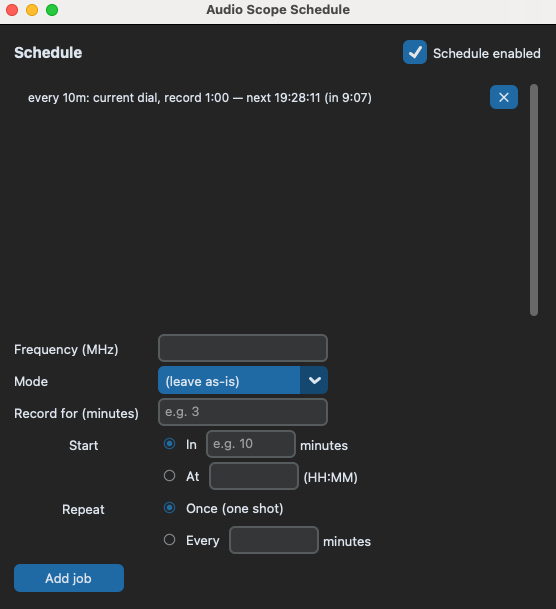
At each firing the app tunes the MAIN band, lets the tail of the old frequency settle clear of the recording, records for the set duration, then restores the exact pre-record frequency and mode.
Schedules and in-flight recordings survive closing the Audio Scope window, and schedules persist across app restarts. Only quitting the app stops everything.