Voice Commands
Voice Commands lets you control your radio by speaking. Tap the capture key (or let the optional wake word listener hear your wake phrase) and Pycom captures what you say, transcribes it to text, and matches it against a fixed set of commands — the same grammar the radio app uses everywhere else. Voice Commands are disabled by default; the transcription backend is the Live Transcription Whisper endpoint, which must be configured and enabled in Config → Speech first.
It is highly recommended to use a headset when using the wake word capability, remote operators can potentially trigger the wake word as the audio has been picked up by your microphone there is no built-in RX suppression. Use the default 1-tap capture key as an alterative trigger. Voice commands captured using the OS default microphone so you can change the microphone input in the program and still supply voice commands.
Privacy: the wake word event capture runs entirely on your computer — your voice does not leave the machine while listening for the wake word, if enabled. When speaking a command, your speech is transferred to a Whisper (speech to text) backend for transcription. This could be either local or remote depending on your configuration.
Quick start: enable Enable Voice Commands in Config → Speech and save, then tap the capture key (default Left Shift) — a ping sounds, the LED turns green and the radio mutes — then speak a command from the table below, for example "tune to 145.5" or "key up". Prefer going hands-free? Also enable Also listen for the wake word and say "Okay radio" instead of tapping the key.
Where the Controls Are #
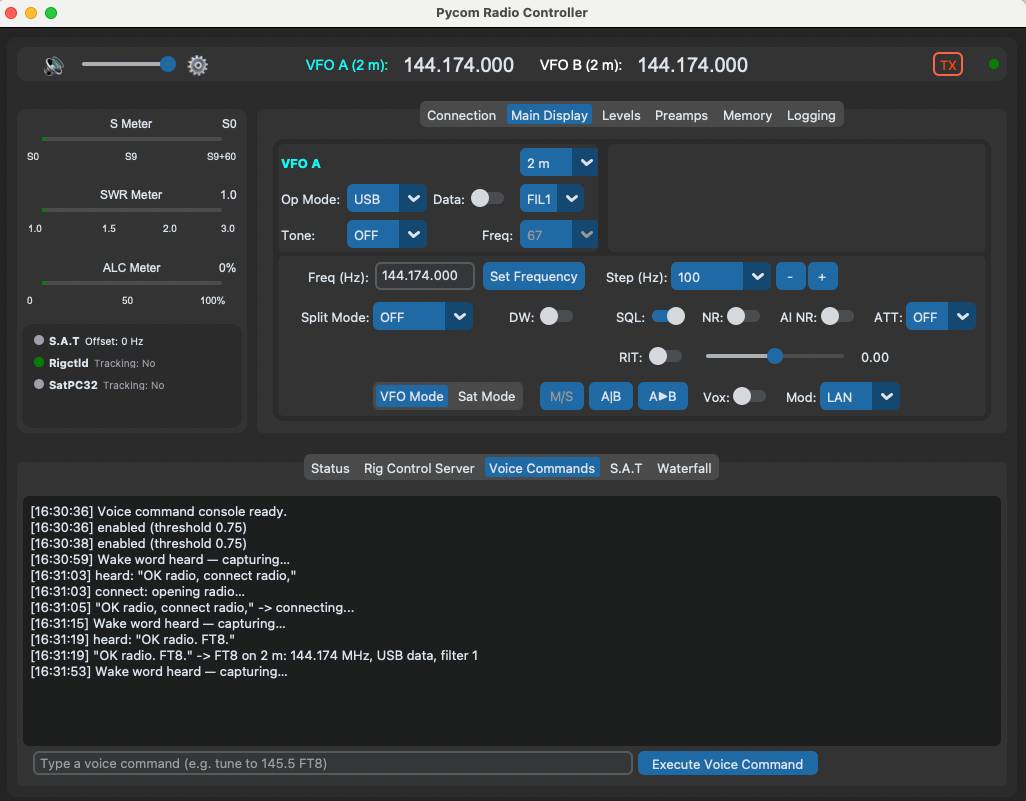
- Wake LED — on the Main Display tab, just right of the TX button. Grey while waiting, green once a capture key press or wake word is heard and Pycom is listening for your command. It is only visible when Voice Commands are enabled and running.
- Voice Commands console — a tab on the Status panel, between Rig Control Server and Waterfall. Shows a time-stamped log of key/wake events, live transcripts, and command outcomes, plus a text entry that runs the same grammar without the capture key.
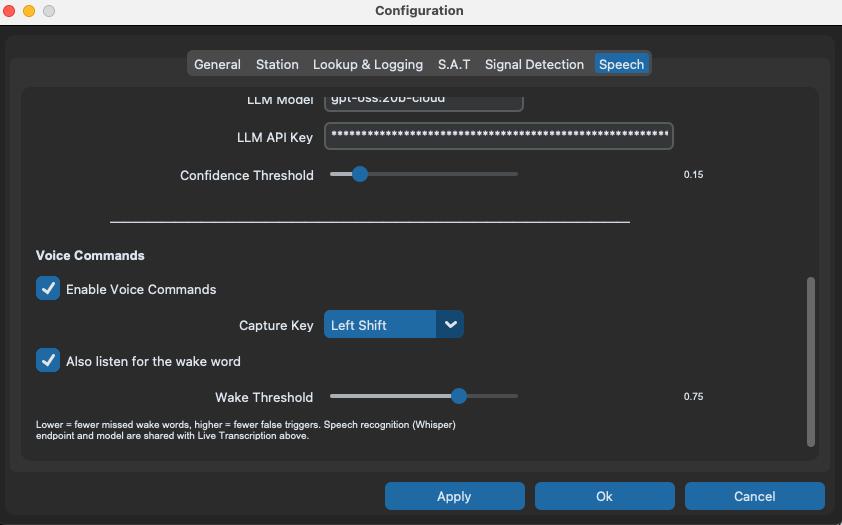
- Config → Speech tab — the Enable Voice Commands checkbox, the Capture Key dropdown (default Left Shift), the optional Also listen for the wake word checkbox (off by default), and the Wake Threshold slider (0.30–0.95). The Whisper endpoint/model settings are shared with the Transcribe section above it.
Voice Command Reference #
Every command below works by voice (after a capture key tap or the wake phrase) and typed into the console's entry box. Phrases in quotes are alternatives — say whichever comes naturally. Items in <angle brackets> are placeholders for what you say.
Capture & PTT
| Say / do | Action |
|---|---|
| Tap the capture key (default Left Shift) | Starts listening for a command — ping sounds, LED turns green, radio audio mutes during the capture |
| "Okay radio" | Wake phrase (optional, enable Also listen for the wake word first) — same capture as the key: LED green, ping, radio mutes |
| "key up" / "PTT on" / "push to talk" | Start transmitting |
| "unkey" / "PTT off" / "drop PTT" | Return to receive |
| "stop transmitting" | Return to receive; stops slot playback if one is playing |
| "stop voice TX" | Stop Voice TX slot playback |
| "play slot <N>" / "transmit slot <N>" (1–8) | Transmit a recorded Voice TX slot |
Radio connection
| Say | Action |
|---|---|
| "connect radio" / "connect the radio" / "radio connect" | Connect using the radio currently selected in the dropdown |
| "connect to <radio name>" — e.g. "connect to IC 9700" | Selects that radio in the Connection dropdown (loading its saved settings), disconnecting the current radio first if needed |
Names match case/space-insensitively with a fuzzy fallback ("9700" → "IC 9700"); unknown names are reported in the console, never guessed.
Frequency & mode
| Say | Action |
|---|---|
| "tune to <freq>" | Tune to the frequency (see spoken formats below) |
| "tune to <freq> <mode>" — e.g. "tune to 145.5 FT8" | Tune and set the mode in one breath. FT8 also switches to USB with data mode on; other modes just set the mode |
| "FT8" / "set FT8" / "mode FT8" | Jump to the current band's FT8 calling frequency with USB data and filter 1 (IC-9700: 144.174 / 432.174 / 50.313 / 1296.174 MHz; common HF FT8 frequencies included) |
| "switch to <mode>" / "mode <mode>" / "change (mode) to <mode>" — e.g. "switch to USB", "mode CW" | Set the mode: USB, LSB, FM, AM, CW or RTTY (validated against the radio's supported modes) |
| Spoken | Resolves to |
|---|---|
| "145.5" | 145.5 MHz |
| "fourteen point oh seven four" | 14.074 MHz |
| "fourteen oh seven four" | 14.074 MHz (kHz form) |
| "432.100.000" | 432.100 MHz (dotted entry style) |
Every frequency is validated against the connected radio's band ranges — a value that lands in no band is rejected rather than sent to the radio.
Filters, data mode & VOX
| Say | Action |
|---|---|
| "set filter one" / "two" / "three" | Select filter 1, 2, or 3 |
| "data mode on" / "data mode off" | Data mode on sets USB first — DATA is a per-mode modifier |
| "vox on" / "vox off" / "disable vox" | VOX on/off — only offered on radios that support it |
| "wake word on" / "enable (the) wake word" / "turn on wake word" | Enable the optional always-on wake word listener (the capture key keeps working regardless) |
| "wake word off" / "disable (the) wake word" / "turn off wake listening" | Disable the wake word listener — hands-off control of hands-free mode |
Transcription & satellites
| Say | Action |
|---|---|
| "transcribe" / "start transcribe" | Open the Transcribe window and start (the panel's Start/Stop button stays in sync) |
| "stop transcribe" | Stop transcription |
| "show satellite passes" | Open the AMSAT status window and refresh the pass list |
| "satellite mode on" / "satellite mode off" | Run the satellite toggle, including band reconciliation |
Memory
| Say | Action |
|---|---|
| "apply memory <name>" / "recall memory <name>" | Apply the named memory via the Apply button path. Names match case-insensitively with a fuzzy fallback ("satellite pass" → "Satellite Pass (ISS)") |
A partially-heard name (cut off mid-utterance) is held back rather than applied.
Mid-transmission (no wake word)
| Say (mid-TX only) | Action |
|---|---|
| "tx off" / "transmit off" / "unkey" / "PTT off" | Return to receive |
| "stop transmitting" | Return to receive (unkeys the radio) |
| "stop voice TX" | Stop slot playback |
| "vox off" / "disable vox" | VOX off; a VOX-held transmission returns to receive |
"tx off" and "transmit off" are mid-transmission-only phrases — they are not part of the normal grammar, so saying them while receiving is simply unrecognized.
How It Works #
- Tap the capture key (default Left Shift) — the LED turns green, a soft ping sounds and the radio audio mutes. Alternatively, if Also listen for the wake word is enabled, say "Okay radio" — same effect. The key always works; the wake word listener is optional and can be toggled by voice ("wake word on/off").
- Speak a command. The app transcribes what it hears in rounds (about 4, then 7.5, then 10 seconds of accumulated audio) and runs the grammar after each round; the first recognized command executes and capture ends immediately. Outcomes appear in the status bar and the console.
- If nothing is recognized, the console shows the last Whisper transcript so you can see exactly what was heard.
A few behaviours worth knowing:
- Frequency commands can be provisional. "Tune to 145.5" is held for one more capture round in case a mode suffix ("FT8", "USB") follows; if the next chunk isn't an upgrade, it executes as spoken.
- Typed commands are first-class. The console's entry box parses and executes exactly the same grammar, so you can test phrases without speaking.
- Everything mirrors the UI. Voice commands route through the exact same code paths as the buttons and dropdowns — satellite mode runs the satellite toggle, "connect to IC 9700" is the dropdown-change + Connect-click flow, memory application is the Apply button path.
Voice commands captured using the system default microphone, ensure you have selected the correct microphone in your System Settings.
Mid-Transmission Commands
While the radio is transmitting (or receiving with VOX enabled), the capture key and wake path are deliberately disabled — a wake word would itself key a VOX radio, and reaching for the key mid-transmission defeats the point. Instead, a shorter command mode arms automatically: no capture key and no wake word needed, just speak. Only the commands that are safe while keyed are recognised — see the Mid-transmission table in the command reference above.
Everything else — tune, mode, memory, slots, "key up", "vox on" — is rejected while keyed, and speech that contains no command (QSO chatter) is silently discarded: it never executes and never appears in the console. One capture attempt per 5 s at most; silence below conversational level never triggers a capture at all.
What to Expect
- The radio mutes during a capture. Received audio returns to your previous mute state when the capture ends.
- When Voice TX is playing its own audio, recognition is fully suppressed so slot playback cannot trigger commands.
- Transient microphone failures retry automatically with backoff.
Tuning
The Wake Threshold slider (0.30–0.95, live on Save) affects only
the wake word: lower hears more wake words but risks false triggers;
higher is stricter. The capture key ignores it entirely. Everything else
is fixed in code but logged at startup for diagnosis
(Wake listener config: ... in ~/Pycom/logs/pycom.log).
Near-miss lines log at DEBUG for a diagnosis session.
If near-misses pile up despite a low threshold, the model isn't keyed to
your voice: retrain at voicute.com with ~5
recordings of your own voice added, then drop the resulting
okay_radio.onnx + model_info.json into ~/Pycom/voice/wakeword/. A
user model always wins, survives app updates, and requires no code change.
Availability
- Nothing runs while disabled — no microphone access is attempted until you enable Voice Commands in Config → Speech.
- macOS Intel — the machine-learning runtime (onnxruntime) has no release for this platform, so the wake word model cannot load there. Voice Commands still work fully via the capture key (key-only mode); only the optional wake word listener is unavailable. If the wake word checkbox was enabled, it degrades to key-only with a note in the log.
- Missing model — if the wake model files are deleted from
~/Pycom/voice/wakeword/, the bundled default is re-deployed on next start. If the listener cannot run, the wake word is unavailable but the capture key keeps working.
File Locations
| Item | Location | Purpose |
|---|---|---|
| Wake word model | ~/Pycom/voice/wakeword/ | okay_radio.onnx + melspectrogram.onnx + model_info.json. User files take priority and are never overwritten. |
| Bundled model | inside the app bundle (model/) | Factory default, deployed to the user directory on first run |
| Model notes | model/wake_word_README.md in the app source | Model provenance and runtime contract (v9.3) |
| Command log | the Voice Commands console (Status tabs) | Key/wake events, live transcripts, outcomes, typed entry |
| Application log | ~/Pycom/logs/pycom.log | Wake tuning snapshot, near-miss lines (DEBUG), mic errors |