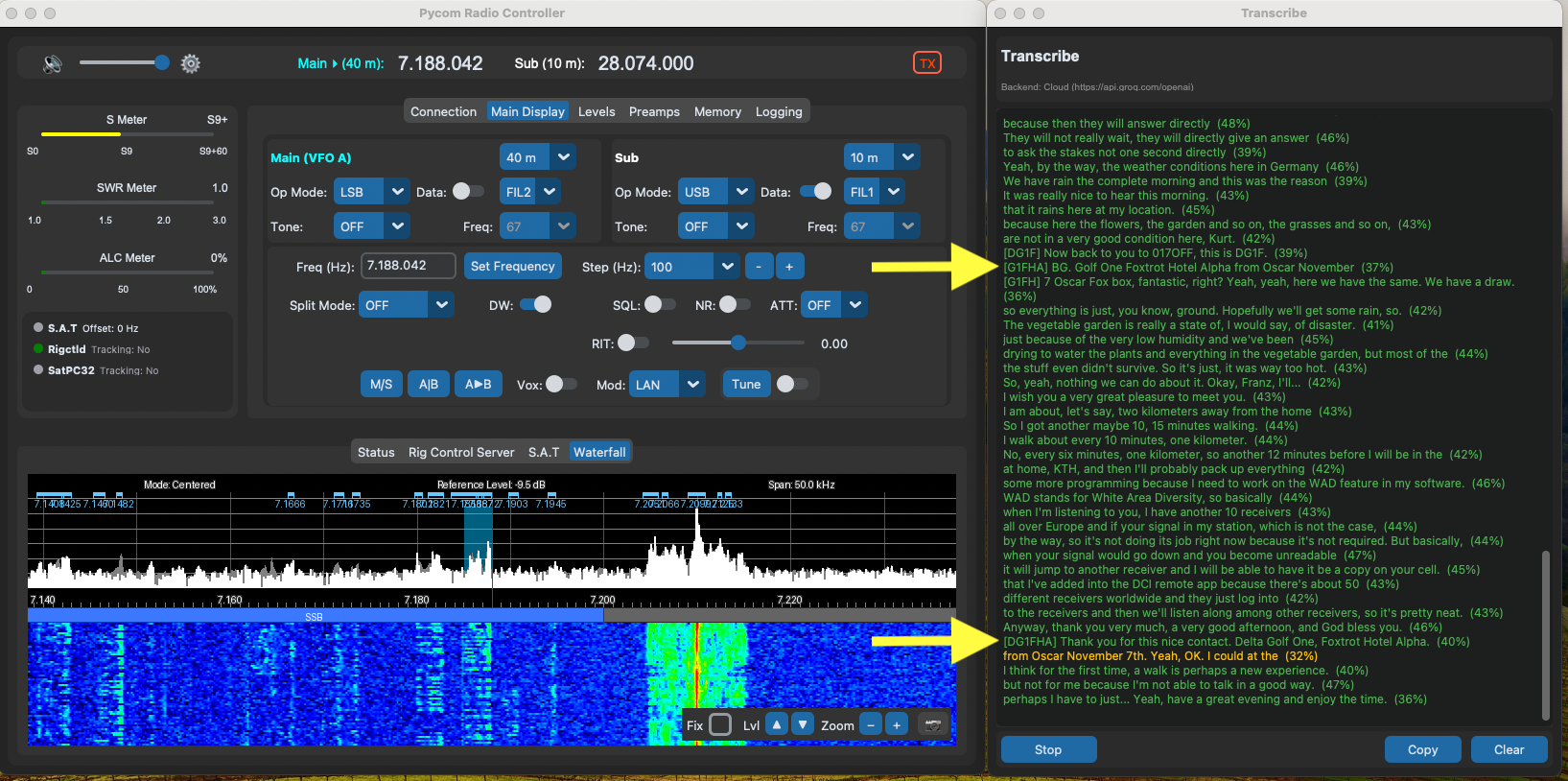
Transcribe provides real-time speech-to-text, including translation for received audio. The received audio stream from your radio's network connection is decoded, downsampled to 16 kHz, and sent in 5-second chunks to a Whisper speech-to-text endpoint. Transcripts appear immediately in a pop-out window with confidence-coloured text.
No local inference is bundled — everything runs through HTTP endpoints you configure.
Privacy: using the transcribe feature your audio transferred to a Whisper (speech to text) backend for transcription. If enabled callsign identification the transcribed speech is transferred to a LLM. Either backend can be either local or remote depending on your configuration.
Opening the Transcribe Window
Open it from Tools → Transcribe. The window pops out, click start to begin transcribing received audio while a network connection to your radio is active.
How It Works
- Received audio is decoded to PCM16 and downsampled from 48 kHz to 16 kHz
- Audio is sent in 5-second chunks to your configured Whisper endpoint
- Transcript text is coloured by confidence — brighter text means higher confidence
- Segments below the configured confidence threshold are not displayed
LLM Cleanup Pass
If an LLM endpoint is configured, a second pass extracts the callsign, RST, name, QTH, and comment from each transcript segment. The callsign is prepended to the displayed line — for example [EA9KB 59] — so you can see who you're working at a glance.
Transcribe pre-converts NATO phonetic words to letters before the LLM sees the text, so the LLM receives E A 9 K B instead of Echo Alpha Nine Kilo Bravo and only needs to concatenate. This is context-aware — phonetic words are only converted when they appear in a callsign-like cluster, so "I went to Italy" stays as-is.
Once a stable callsign is cached, segments that repeat it phonetically are matched locally with no LLM API call needed, eliminating most LLM calls in a typical QSO.
Configuration
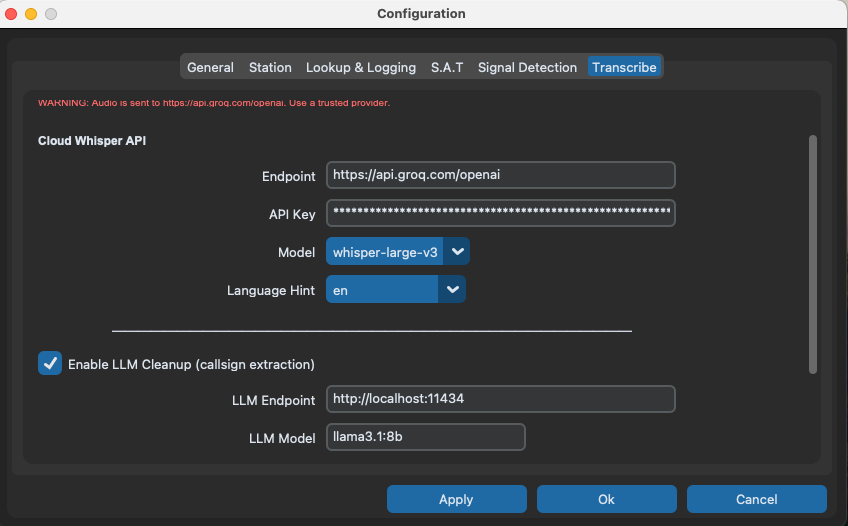
Open Settings → Configuration → Speech tab to configure the transcription endpoints.
Cloud Speech-to-Text (Whisper) Endpoint
Transcribe works with any OpenAI-compatible Whisper endpoint. The fastest free-tier option is Groq.
To use Groq:
- Register at console.groq.com/keys and create an API key
- Set the ASR endpoint to
https://api.groq.com/openai - Set the ASR model to
whisper-large-v3 - Set the language hint to
en - Paste your Groq API key into the ASR API key field
LLM Cleanup Pass
The optional LLM cleanup pass extracts the callsign, RST, name, QTH, and comment from each transcript segment. The callsign is prepended to the displayed line — for example [EA9KB 59]. Configure one of the following:
Local Ollama (recommended — runs entirely on your machine):
- Install Ollama from ollama.com
- Run the model:
ollama run llama3.1:8b - Set the LLM endpoint to
http://localhost:11434 - Set the LLM model to
llama3.1:8b - Paste your Ollama API key into the llm api key field
Ollama Cloud (no local hardware required):
- Create an account at ollama.com
- Set the LLM model to an available model of your choice, for example
gpt-oss:20b-cloud - Supply your Ollama Cloud API key in the LLM API key field
Any OpenAI-compatible chat API works as the LLM endpoint. If you prefer another provider, set the endpoint and API key accordingly.
Configuration Fields
| Field | Description | Example |
|---|---|---|
| ASR Endpoint | OpenAI-compatible Whisper base URL | https://api.groq.com/openai |
| ASR API Key | API key for your Whisper provider | Your Groq or OpenAI key |
| ASR Model | Whisper model name | whisper-large-v3 |
| Language Hint | ISO language code to guide transcription | en |
| LLM Endpoint | OpenAI-compatible chat completion URL (optional) | http://localhost:11434 |
| LLM API Key | API key for the LLM provider | Your LLM provider API key |
| LLM Model | Chat model name for the cleanup pass | llama3.1:8b or gpt-oss:20b-cloud |
| Confidence Threshold | Segments below this confidence are not displayed | 0.15 |
All settings persist to your configuration file and are restored on startup.